Choosing and Using Wild Flowers: A Practical Guide to Getting the Most from High-Resolution Floral Graphics
If you are looking for premium floral imagery that offers both scale and detail, you have likely come across the Wild Flowers collection. This set of high-resolution wildflower PNG files is designed for professionals and creators who need flexibility, quality, and impact. Each file comes in at a massive 10,000 by 7,500 pixels at 300 DPI, making it suitable for everything from large-format prints to detailed digital compositions. The package is delivered as a zipped folder, so a PC or laptop with unzipping capability is necessary to access the files. The PNG format means you will need an editing program that fully supports this type—most modern software like Photoshop, Affinity Photo, GIMP, or Canva Pro will handle them, but it is worth confirming before you commit.
However, owning such a powerful resource is one thing; using it effectively is another. Many people download floral assets and end up frustrated because they overlooked practical details or made assumptions that led to poor results. This article highlights the most common mistakes, misunderstandings, and overlooked factors when working with a collection like Wild Flowers. The goal is to help you avoid wasted time, unnecessary costs, and missed creative opportunities.
Mistake 1: Assuming PNG Means No Setup Needed
The files in Wild Flowers are PNGs with transparency, which is excellent for layering and compositing. But beginners sometimes assume that PNG is universally editable out of the box. The truth is that while most image viewers can open them, true editing requires a program that respects the alpha channel and allows you to manipulate the image without flattening it. If you try to open these in a basic preview tool or a stripped-down editor, you may see the flowers but lose the ability to cut, resize, or combine them properly.
How to avoid this: Before you decide to buy or download Wild Flowers, check that your editing software supports PNG files with transparency and can handle high-resolution images. Popular choices include Photoshop, Affinity Photo, Procreate (on iPad with appropriate file transfer), Photopea (browser-based), and newer versions of GIMP. If you rely on a limited mobile app or a free online tool with resolution caps, you might not be able to open or export the files at full quality. Also, because the package is zipped, make sure your device has a utility to extract files—on a PC, built-in extraction works fine, but some tablets cannot unzip without additional software.
Mistake 2: Underestimating the Resolution and Scaling Requirements
A 10,000 by 7,500 pixel file at 300 DPI is enormous. That is a good thing—it gives you extreme flexibility. But many users make the mistake of treating it like a small graphic. They import the full file into a layout at 100% zoom and then wonder why their software slows to a crawl or crashes. Others scale it down without considering resolution loss, or they scale it up even more and expect the same crispness.
Practical advice: Understand what that resolution actually means. At 300 DPI, this file prints at roughly 33.3 by 25 inches (about 85 by 64 cm). That is poster or banner territory. If you only need a small graphic for a social media post or a business card, you can reduce the image size, but do so intelligently. Use your editing software’s image size tool to downscale proportionally, and keep the DPI at 300 if you plan to print later. For digital use, you can lower the DPI to 72 while keeping pixel dimensions manageable. The sweet spot is to work with a copy of the file and save the original high-res version untouched for when you need it. This approach prevents performance issues and preserves the asset’s full value.
Another overlooked detail: PNG files at this resolution can be quite large—sometimes 50 MB or more per flower. Ensure your storage and RAM can handle multiple open files. If you are working on a lower-spec machine, process one flower at a time and close unused files.
Mistake 3: Ignoring Color Profiles and Output Intent
Because Wild Flowers files are PNGs in RGB color space, they are optimized for screens. But if your end goal is professional print, you need to be aware of color shifts. RGB flowers might look vibrant on your monitor but print duller if your printer expects CMYK. This is a common source of disappointment. The flowers themselves are photographic or highly detailed illustrations, so their color accuracy can matter a lot for branding, invitations, or wall art.
What to do about it: Before you build a final layout, decide whether your output is digital or print. For digital use (websites, social media, email headers), RGB is perfect. For print, convert the files to CMYK in your editing software and check how the colors change. You may need to adjust saturation or brightness to compensate. Many designers keep a master file in RGB and create a CMYK copy only at the end. Also, calibrate your monitor regularly so that what you see is closer to what you get. If you are a beginner, run a small test print on your home or local printer before committing to a large run.
Mistake 4: Overlooking the Specifics of the Package Before Purchasing
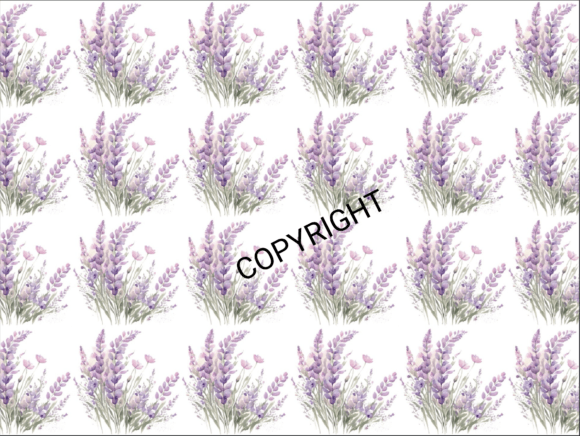
Some buyers assume that all floral graphic sets are interchangeable. Wild Flowers has its own aesthetic—the specific species, the style of the illustrations, the color palette, and the level of detail. A common mistake is to buy it based on a general need for flower images without checking whether the individual flowers match the project’s mood or theme. For example, if you need delicate pastel blooms for a wedding invitation, and the set features bold, wild meadow flowers in saturated colors, you may end up with a mismatch.
How to make a better decision: Look at the preview images carefully. Note the species included, the color range, and whether the backgrounds are truly transparent. Check the sample resolution and how the flowers are composed—are they isolated stems, full blooms, or clustered arrangements? If the product page does not list the included flowers, ask the seller or find a detailed review. Compare the aesthetic with your past projects. If you often work in a minimalist style, you want flowers with clear edges and subtle tones. If you create nature-themed posters, you might prefer a mix of vibrant and subdued options. The right match saves you time and prevents buyer’s remorse.
Mistake 5: Treating the Files as Ready-to-Use Without Editing
Because the Wild Flowers files are PNGs with transparency, some users think they can drop them directly into a design and be done. That approach rarely leads to professional results. The flowers might not be perfectly positioned for your composition. Their brightness might clash with your background. Or the scale might be off relative to other elements.
Better approach: Treat each flower as a starting point. Use your editing software to adjust levels, shadows, highlights, and even hue if needed. Rotate, flip, or combine multiple flowers to create unique arrangements. Add drop shadows, blurs, or blending modes to integrate them naturally. For example, if the flower looks too sharp against a textured background, apply a slight Gaussian blur to the edges. If you need a muted look, reduce opacity or desaturate slightly. The high resolution gives you room to crop generously without losing quality, so you can isolate one petal or a single leaf for a custom element. The goal is to make the flowers your own, not just place them.
Another practical tip: Because the files are large, consider creating a library of smaller preview versions or use a digital asset manager to keep track of them. Naming them by species or color helps you find the right one quickly when you are in the middle of a project.
Mistake 6: Forgetting the Technical Requirements for Unzipping and File Transfer
This sounds basic, but it is one of the most frequent stumbling blocks. The Wild Flowers collection is compressed into a zip file. You need a PC or a device that can unzip it. Tablets and smartphones often struggle with large zip files or lack the necessary extraction tools. Even on a PC, if you use an older extraction utility, you might get errors with files larger than 4 GB if the zip uses compression methods that require updated software.
Simple solutions: Use a reliable extraction tool like 7-Zip, WinRAR, or the built-in Windows extractor if the file size is manageable. If you anticipate moving the files to an iPad or another device, unzip on the PC first, then transfer the individual PNGs via cloud storage, USB, or a dedicated transfer app. Check the file size of the entire zip before downloading to ensure you have enough bandwidth and storage. These steps take only a few minutes but prevent the frustration of a corrupted or inaccessible download.
Mistake 7: Misjudging the Cost and Time Investment for Your Specific Use Case
High-quality floral PNG sets like Wild Flowers represent a real investment, both in cost and in the time you will spend editing and composing. A common oversight is buying the set only to realize you need multiple variations of the same flower or that the set lacks certain species you rely on frequently. Another is underestimating how long it takes to prepare a single flower for a polished design—adjusting color, removing artifacts, masking edges, and testing it in the layout.
What to consider beforehand: Think about your typical projects. If you only need occasional floral accents, a smaller, curated set might be more practical. If you create large volumes of marketing materials or sell print-on-demand products, the resolution and variety in Wild Flowers could be a smart long-term asset. Calculate the cost per usable image versus the time you would spend sourcing and editing free alternatives. Also, factor in that PNGs with transparency save you the effort of background removal, which is a hidden time cost with many low-quality images. If the set aligns with your recurring needs, the value becomes clear. If not, wait for a product that better fits your workflow.
Mistake 8: Neglecting to Test Before Committing to a Large Project
Even after you have unzipped and opened the files, do not build an entire campaign or product line without testing first. One person might love the texture and detail of the flowers, only to find later that the transparency has minor edge artifacts when placed on a dark background. Another might discover that the file compression introduced a faint artifact that only shows at certain zoom levels.
Testing protocol: Place a few of the flowers into a mockup that mirrors your final output—whether that is a poster, a website banner, or a product label. Zoom to 100% and check for halos, pixelation, or color shifts. Export a sample at the size and format you will use. Print a small test if you intend to print. Only after you are satisfied should you proceed with full production. This step protects your project from surprises and reinforces the quality you expect from a premium resource.
Final Thoughts on Getting It Right
The Wild Flowers collection offers exceptional resolution, format flexibility, and creative potential. But the difference between a mediocre result and a stunning one often comes down to preparation and understanding. By avoiding the common mistakes around system requirements, scaling, color management, and editing expectations, you can ensure that every flower you use enhances your work rather than creating headaches. Take the time to review your software, test a few files, and plan your composition. That small investment upfront will let you capitalize on the full power of these beautiful wildflowers in your designs, prints, or digital media. Whether you are a small business owner creating branded packaging, a blogger enhancing visual storytelling, or a hobbyist crafting art prints, a thoughtful approach will turn a good asset into a great one.